Showing posts with label marking. Show all posts

Thursday, 27 June 2013

5 excel functions every teacher needs to know

Whether you’re on the SLT or it’s your first year in the classroom, some of your time will be spent analysing pupil data. Taking a bit of time to learn the following excel functions will work wonders to speed up and enhance that analysis


Conditional formatting
Conditional formatting can give you an instant visual impression from your data. There are some basic built in options straight on your menu bar, but spending a few minutes here learning how to set up your own rules will turn a page of numbers into a useful informative document quickly. Take a 20 minute lesson on conditional formatting here to master the rules!

Examples:
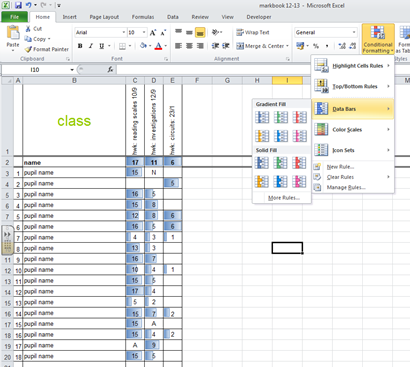
1 - using basic data bars from the built-in conditional formatting toolbar
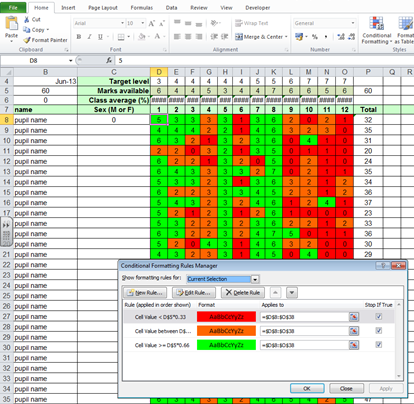
2 - colour coding pupil performance on individual questions


Pivot tables
How many pupils in that class are below target? How many in year 9 are working at level 6 or above? There’s no need to count or copy and paste columns if you know how to use a pivot table. Learn the basics here. 

Examples:

calculating level percentages


VLOOKUP
This command comes in very helpful for generating automatic comments from a numerical result. It can also save valuable time by looking at the level boundaries for you and selecting the correct level. Basics here. 30 minute lesson here.


Examples:
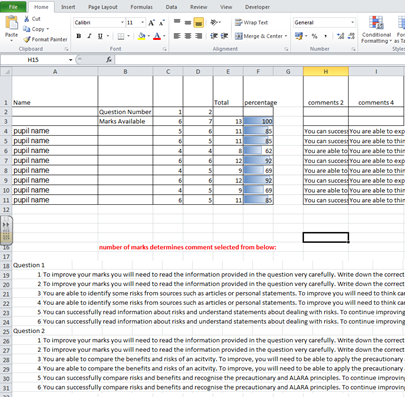
1 -  generating automatic comments from a numerical result.

2 - level boundaries used automatically


IF
This function is useful for identifying how many pupils are on target by quickly comparing two (or more) cells. Find out what the IF function is here. 20 minute lesson here

Example:

identify pupils who meet their target level


countif
Why count the number of pupils who meet a certain condition when excel can do the counting for you? Check out the COUNTIF function here.

Example:
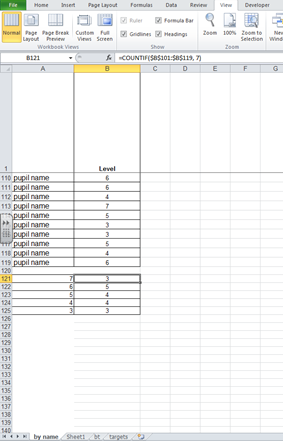
 

count the number of pupils at different levels


This probably seems like the most complicated of the posts on this website, and that’s probably the thing that puts most people off learning excel functions. But please, trust me, a small investment of time to learn these functions will save hours in the long run. It’s worth it!

Tuesday, 4 June 2013

5 steps for efficient homework

5 steps for effective and efficient homework

Whether you are setting homework enthusiastically because you think it’s valuable or begrudgingly because it’s school policy, following a few simple checks will prevent it taking over your life, while remaining effective for pupils..


Consider question

Choose something that is going to be easy to mark. Use exam questions with a mark scheme rather than a free form activity where you’re going to have to sit and think about the marking for a while.


Consider format

Are you wasting time finding the homework in the pupil’s book before you mark? Does leafing through their book get you sucked into correcting other things? Instruct pupils to hand in their books open at the correct page or, even better, do the homework on an independant sheet of paper to make it quicker to mark


Consider schedule

It’s worth looking through your timetable and getting into a routine for when you expect homework in from each class. This avoids a situation where all 5 classes are handing it in on a Tuesday. If you go to Zumba every Thursday night, avoid assigning too much homework that is handed in that day.


Consider sanctions

Having a system for sanctions is helpful for all sorts of non-productivity reasons but consider the timing of your homework to make the sanctions as easy to operate as possible. If you’re going to be giving a lunchtime detention, you might as well have the class before lunch handing their homework in then, rather than the next afternoon.


Consider feedback

Your school is likely to require feedback on marking but that doesn’t mean you’ve got to spend ages writing similar comments over and over again. Set up this automatic system to save you time, while still getting the benefit of feedback to the pupils.

Wednesday, 1 May 2013

marking and feedback


Marking often feels like a waste of time. The school marking policy wants constructive feedback  but does all the time you spend writing comments actually have an effect on the pupils? Do you feel like you’re writing the same comment over and over again. You need a feedback strategy. This automated feedback system takes time to set up, but once it is up and running it will do the work for you, generating the feedback comments and prompts for action, saving your time.

choose the question
Choose questions that are straightforward to mark and will be easy to give a constructive comment on how to progress to the next level or grade. Choose something that you will be able to use again to avoid having to go through this process for every class every year.

set up spreadsheet
Add each question or section of marking criteria with the number of marks available into this spreadsheet or one like it.

comments
On the comments tab of the spreadsheet, type a comment for a pupil who achieves each possible mark. This part takes some time but will save you writing similar comments over and over again. Notice on the example that the same comment is used for more than one mark (eg same comment for 0-3 marks)

action
To increase the effect of your feedback (and to prove that to anyone looking at your books!), make sure the comment includes something for the pupil to do - find the correct answer, write down a definition, apply knowledge to a different situation etc. Then allow 10 minutes during the next lesson for the pupil to carry out those actions.


vlookup command
The example spreadsheet is set up for 4 questions of 10 marks each. If your questions or marking criteria are less than 10 marks, just leave the unnecessary parts of the comments section blank. If you need more than 4 questions or 10 marks, take a few minutes to learn how to use the VLOOKUP command in excel (tutorial). If you need to change the number of marks available for each question on the spreadsheet, you will need to adjust this formula.


feedback template
Set up your own version of this document. To merge the information from your own spreadsheet you will need to :
  • select your list (spreadsheet)
  • select your recipients
  • add the fields from your spreadsheet into your document (question titles)

If you are new to mail merging - have a look at a more detailed guide here

This document gives feedback for each question and something for the pupil to act on, including a space for their response on the page. This is an easy way to flag up progression to anyone flicking through your books.

Setting this up the first time probably takes the same amount of time as it would to write individual comments, but when you arte using it for multiple classes or using it again for the second year you’ll really notice the time saved.


For other examples of the same idea see the two links below (TES account needed):